As all of us know that Windows 10 is not officially released yet but you can always download and install it's builds from internet.Last week windows released a build for Windows 10 which was named as build 10240.Apparently this build has added some new features like Screen Recording.Yes it can actually record your Desktop screen.So, now you don't need any third party softwares to record your on screen activity.The in-built feature in this new build will do it for you.
So, now let's get started.In this brief tutorial I will teach you how to record your on screen activity with this newly added feature.First of all you have to be on latest build 10240 because this feature is only available on build 10240.This feature is quite a hard to find on Windows 10 even if you are on the latest build 10240 you can't find it easily.It's like a secret feature of Windows 10.Before you try out any third party tools to record your on screen activity you might wanna checkout the Windows 10's hidden tool.It is specially for gamers but anyone can use this tool.If you want to make a video tutorial then it is also possible with the help of this tool.
There's a toolbar named game bar which gamers use to capture screenshot of their highscores or even record video of their on going game.If you ever thought that this is just a toolbar and it's only limited to use with games then let me tell you my friend you are wrong.
First of all press Windows key and G together, A popup window will appear asking if you want to open a game bar, There will be a box 'Yes, this is a game', Check that box(You will only have to do this first time).

Now just hit the record button to start recording your on screen activity.When you want to stop the recording there are two ways to do it. 1) Hit the record button again. 2) Press Windows Key + Alt + R.
The buttons shown in the above image has one of the setting button (First to Rightside).This button is to set the recording limit.The videos that you will record with this tool will be save in your Hard drives Videos\Capture folder.
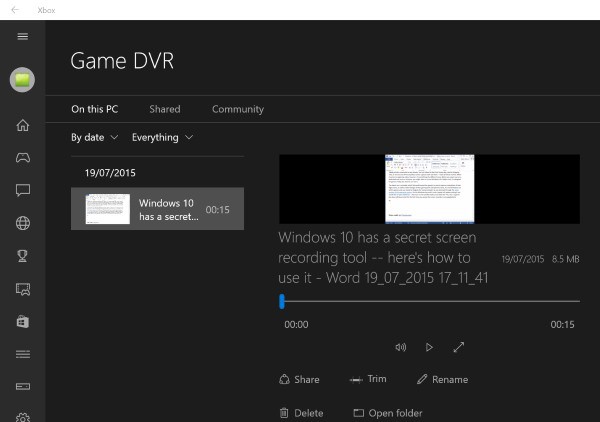
Let me tell you if you have not realized until now that this tool is a part of Xbox App.If you want more setting then you have to go to Xbox App.If you want to access your recorded videos then just go to the DVR section(Fifth icon from bottom).There is also an option to trim your recorded video.
So this is it guys.Enjoy recording all your stuff without downloading any third party apps.Let me know in the comments if you find it helpful or comment down below if you are facing any problem setting up your hidden screen recording tool.



No comments:
Post a Comment